If you are using Stripe for payment processing and need to understand an error message in more detail:
- Log in to your Stripe account.
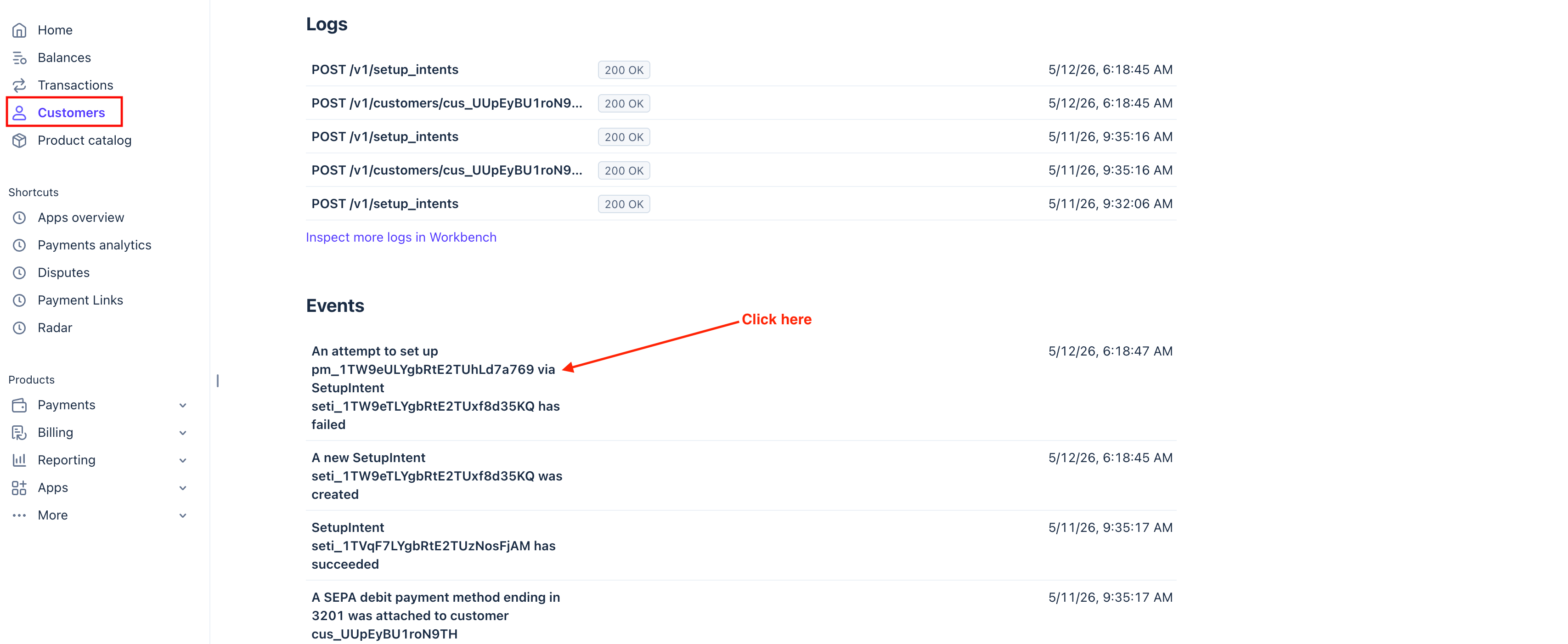
- Click Customers in the sidebar.
- Under Events, click on the event in question.
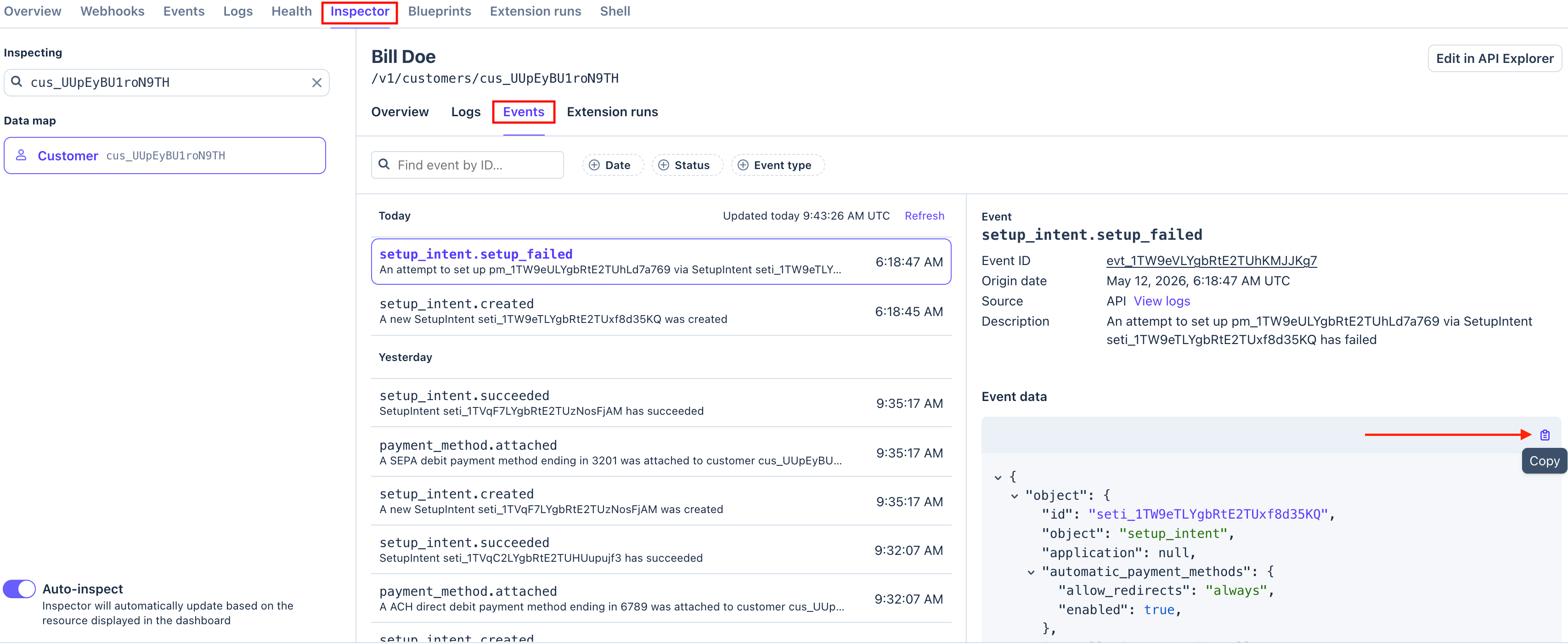
- Click on Inspector in the top menu bar, then on Events in the menu bar below.
- Click on the event in question. You'll see the error message and other event details to the right.
- If you need help analyzing, click the clipboard icon shown below to Copy the Event data and paste it into a Deskworks Support ticket.
Was this article helpful?
That’s Great!
Thank you for your feedback
Sorry! We couldn't be helpful
Thank you for your feedback
Feedback sent
We appreciate your effort and will try to fix the article