Deskworks can automatically generate late fees for past due member invoices. You choose the percentage and number of days past the due date, and the system handles the rest.
This helps support a consistent late fee policy without requiring manual entry or follow-up each month.
Skip to Setting Up Late Fees →
How Late Fees Are Billed
Timing & Calculation
Late fees are calculated once per month based on your settings.
- After the set number of days past the due date, a percentage-based fee is added to the member’s Current Charges.
Invoicing
Once added to Current Charges, late fees will automatically sweep to the member’s next invoice.
- Late fees are not added to the original overdue invoice, since that accounting period may be closed.
- This applies only to auto-generated invoices. Manually created invoices do not trigger automatic late fees.
- Each invoice will trigger one late fee, but you can add additional ones manually if needed.
If you need to bill a late fee separately, you can do so before the sweep:
- Click Create Invoice in Current Charges.
- This creates a standalone invoice with the late fee (and any other unbilled items in Current Charges).
Appearance
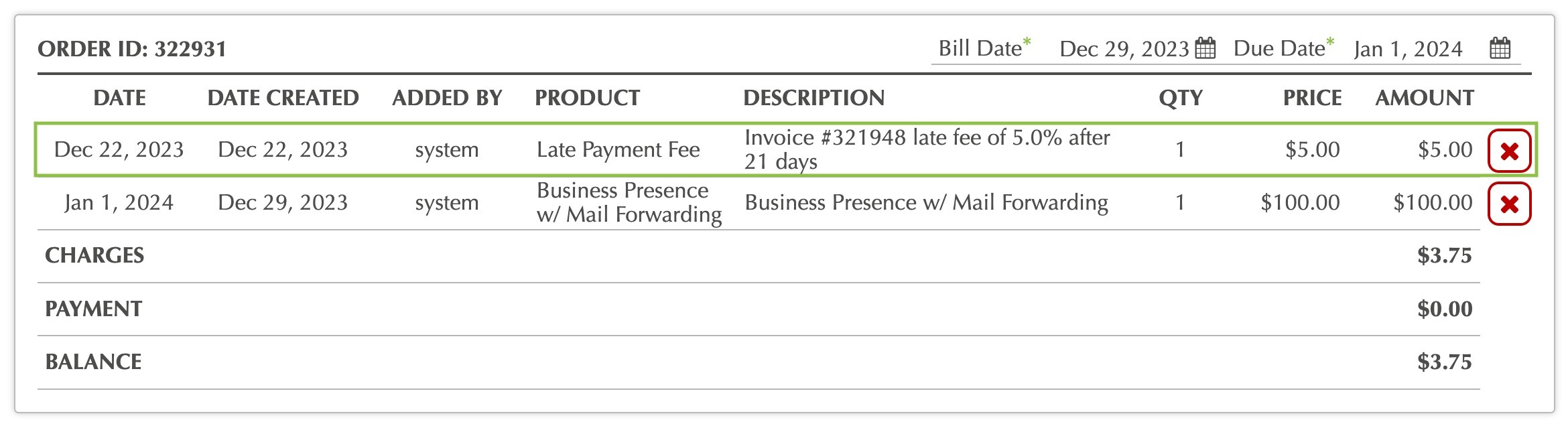
Each late fee appears as a separate line item labeled Late Payment Fee. The description includes:
- The original invoice number
- The late fee percentage
- The number of days past due when the fee was applied
Modifications
If a late fee needs to be changed or removed, you can do so manually.
- Before the sweep, delete the late fee from Current Charges to prevent it from being added to the next invoice, or
- After the sweep, delete the late fee directly from the monthly invoice it was added to.
Setting Up Late Fees
- Go to SETUP > SETTINGS
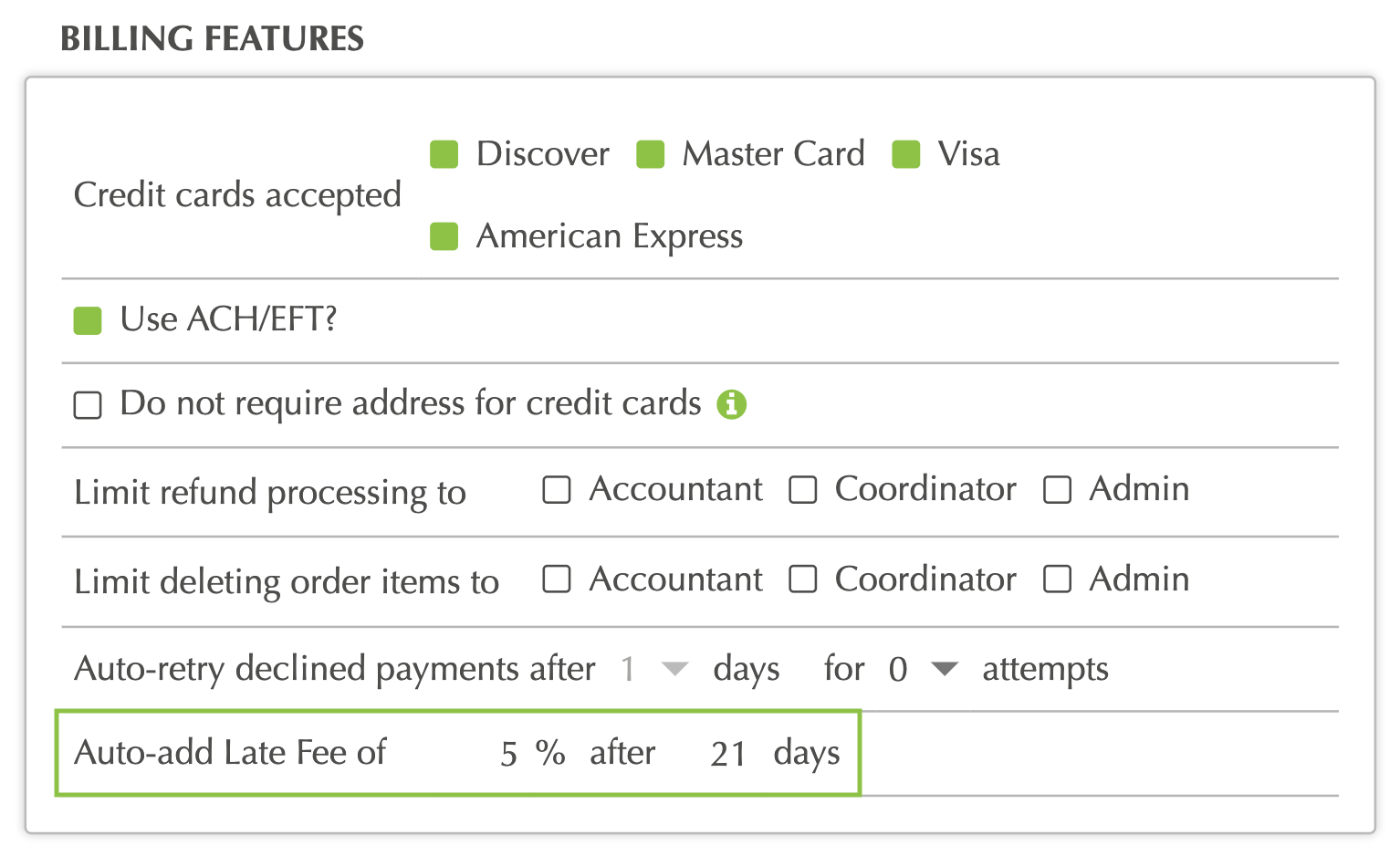
- In the BILLING FEATURES section, locate the field "Auto-add Late Fee of"
- Enter numberic values for:
- Late fee percentage (e.g. 5%)
- Number of days after due date to apply the late fee (e.g. 21 days)
- Click SAVE (located at the bottom of the page)
To TURN OFF the Auto-add late Fee setting, leave both numeric fields blank.
Was this article helpful?
That’s Great!
Thank you for your feedback
Sorry! We couldn't be helpful
Thank you for your feedback
Feedback sent
We appreciate your effort and will try to fix the article