Deskworks lets you send a payment link from an invoice on an Active Member, Non-Member, or Inactive Member account.
This is helpful when someone needs to pay an invoice but has not added payment details yet. For example, you can send a payment link to a new member so they can enter a payment method and pay their first invoice in one workflow.
Note: This feature is available on the Pro Plan. If you’d like access or want to learn more about upgrading, submit a support ticket and our team will be happy to help.
Who receives the payment link?
When you send a payment link, Deskworks emails it to:
- The primary Member on the account
- Any Co-members with "Sees accounting info?" turned on
This makes it easy to send payment links to the correct billing contact or accounting department.
How to send a payment link
- Search for the member
- In the sidebar, go to Billing > Charges/Payments.
- Edit the order or invoice you want to send.
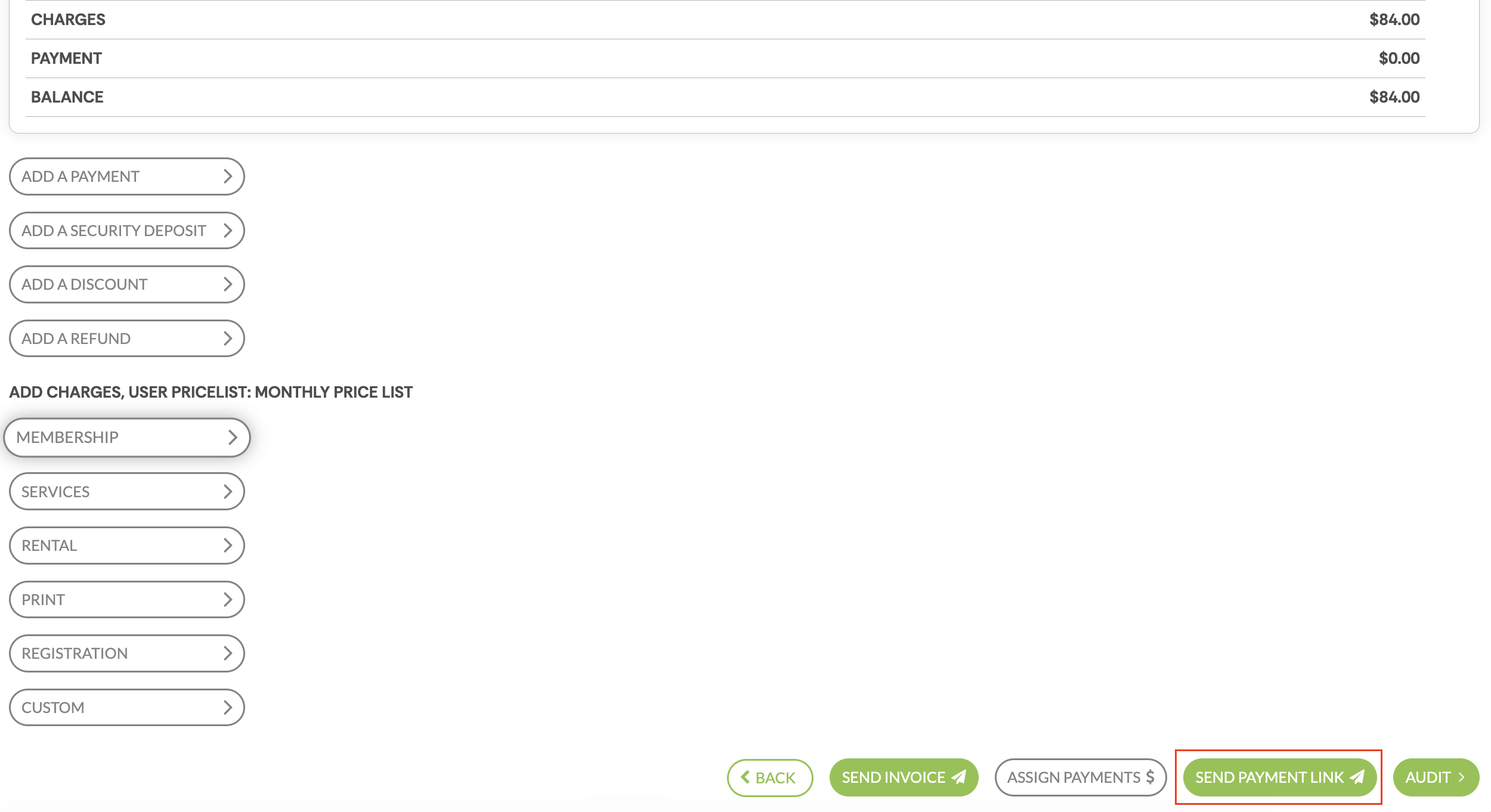
- Scroll to the bottom of the invoice and click Send Payment Link.
What happens when the recipient clicks the link?
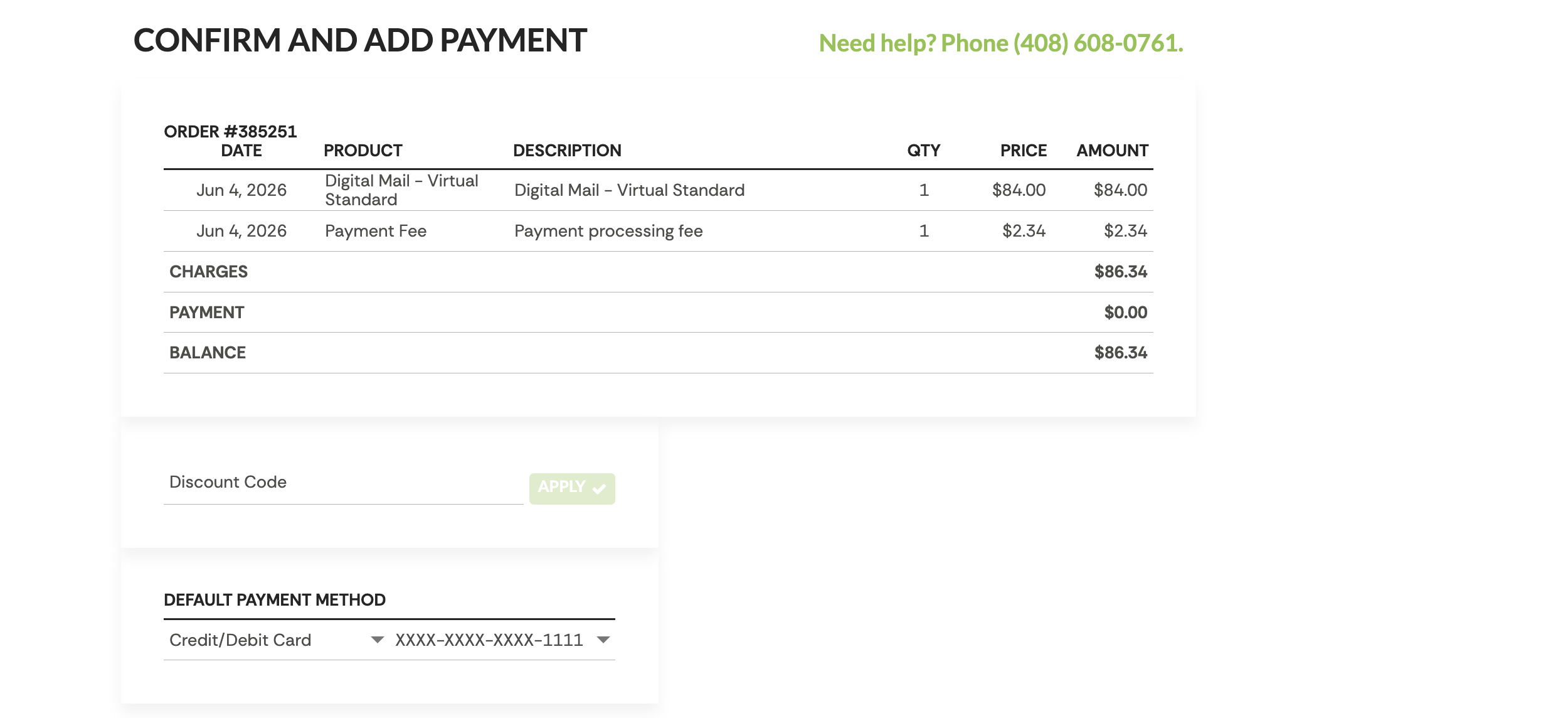
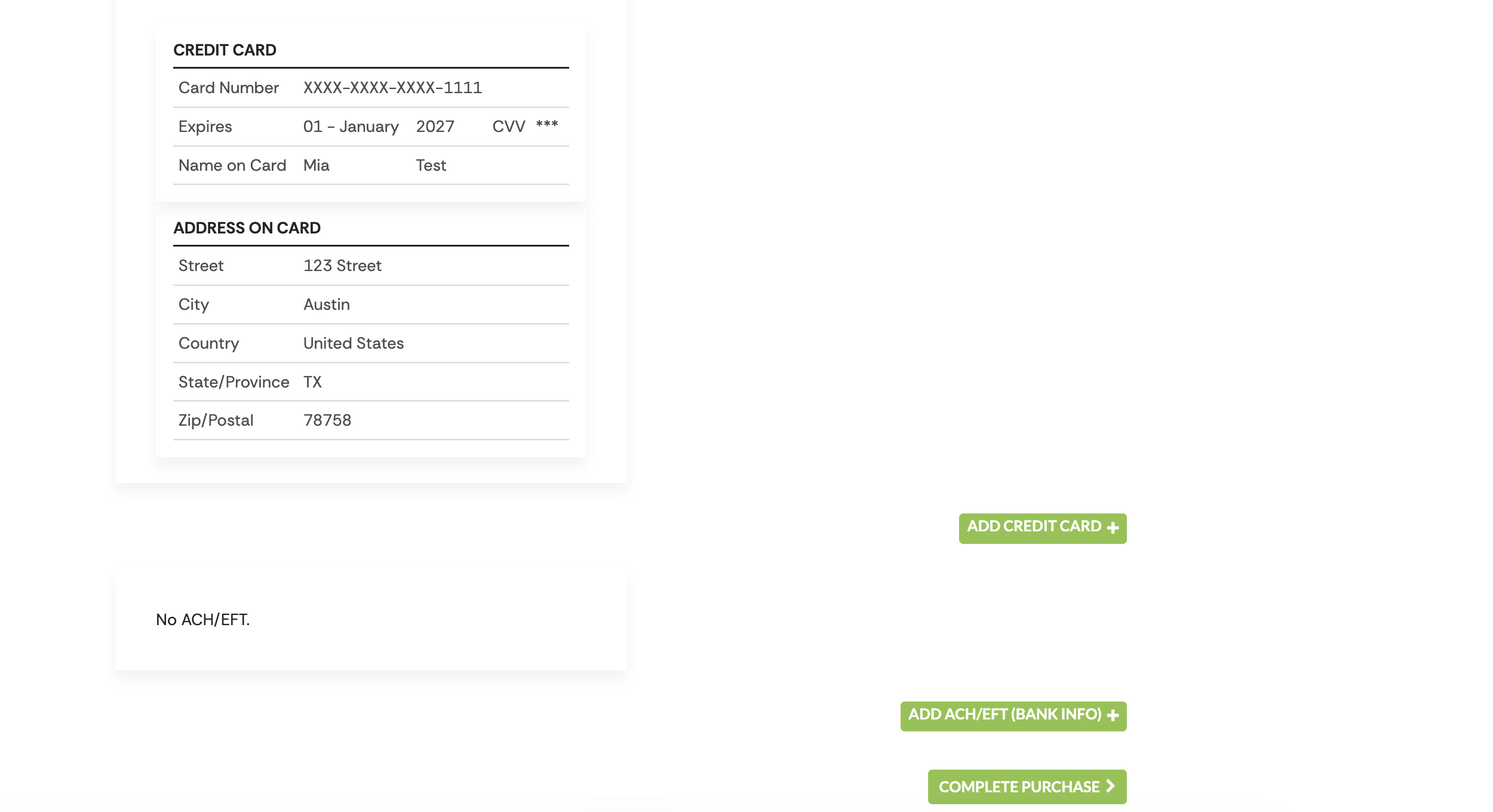
When the recipient clicks the payment link, they will be taken to an invoice payment page.
From there, they can:
- Review the invoice.
- Enter payment details, such as a debit card, credit card, or bank information for ACH payments.
- Click Complete Purchase to pay the invoice.
How do I update the payment link email template?
- Go to Email Notifications > Payment Link Email
- Update the Subject and Body of the email as needed
- Ensure the {{payment-link}} shortcode is included in the email body so recipients can access the payment page
- Save
Was this article helpful?
That’s Great!
Thank you for your feedback
Sorry! We couldn't be helpful
Thank you for your feedback
Feedback sent
We appreciate your effort and will try to fix the article